Install WASD and WASD Look
WASD has two apps of its own. Install WASD runs from the USB and writes the system to a drive. WASD Look is on the installed computer and changes the pictures later. The first boot also shows a short window called Completing the install.
The drive names in the pictures below are an example. On your computer, Install WASD lists the drives that are actually installed.
Install WASD
Boot the USB. The menu on the stick says Start WASD. The live desktop opens Install WASD. You can close that window. The desktop stays usable. Open it again from the desktop icon or from the menu. Both are named Install WASD.
The steps are User, Look, Apps & Agents, System, and Disk. Disk is last. That is the step that erases a drive.
User
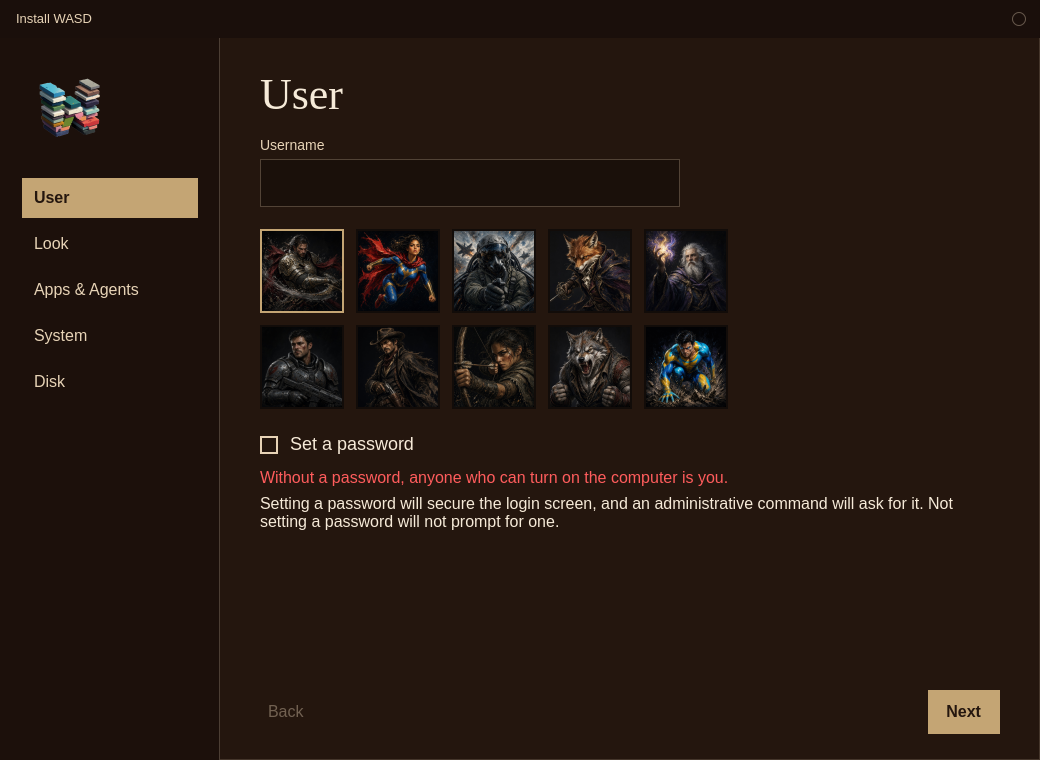
Set a password starts unchecked. While it is unchecked, the page says, in red, "Without a password, anyone who can turn on the computer is you." Under that: "Setting a password will secure the login screen, and an administrative command will ask for it. Not setting a password will not prompt for one."
Leave the box unchecked and the computer signs itself in. An administrative prompt is accepted with Enter. Check the box and the password is typed the first time the installed computer starts, in two boxes that have to match. There is no skip. That password is also the administrator password. There is no separate root account. The password is not stored in the installer file.
Look
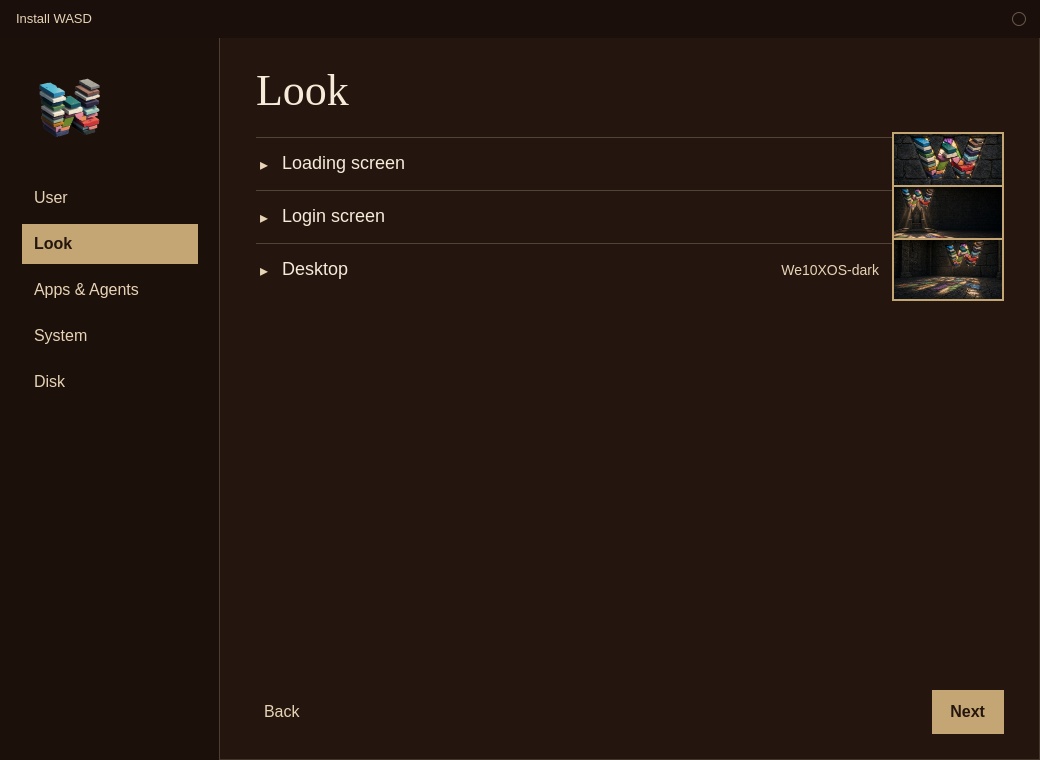
Loading screen is the picture behind the bar while the computer starts. Login screen is the picture on the sign-in screen. Desktop is the wallpaper, with a theme name beside it. The defaults are the stained-glass loading picture, the throne login picture, and the stained-glass desktop.
The picks on this step are saved with the install. A new WASD system already uses those three defaults. To switch to a different picture after the install, use WASD Look. Adding a picture file to the matching folder adds a choice. On the installed system the folders are:
Loading screens: /usr/share/wasd/loading
Login screens: /usr/share/wasd/login
Wallpapers: /usr/share/wallpapers/wasd
Those folders belong to the system, so copying a file into one of them asks for the administrator password.
Apps & Agents
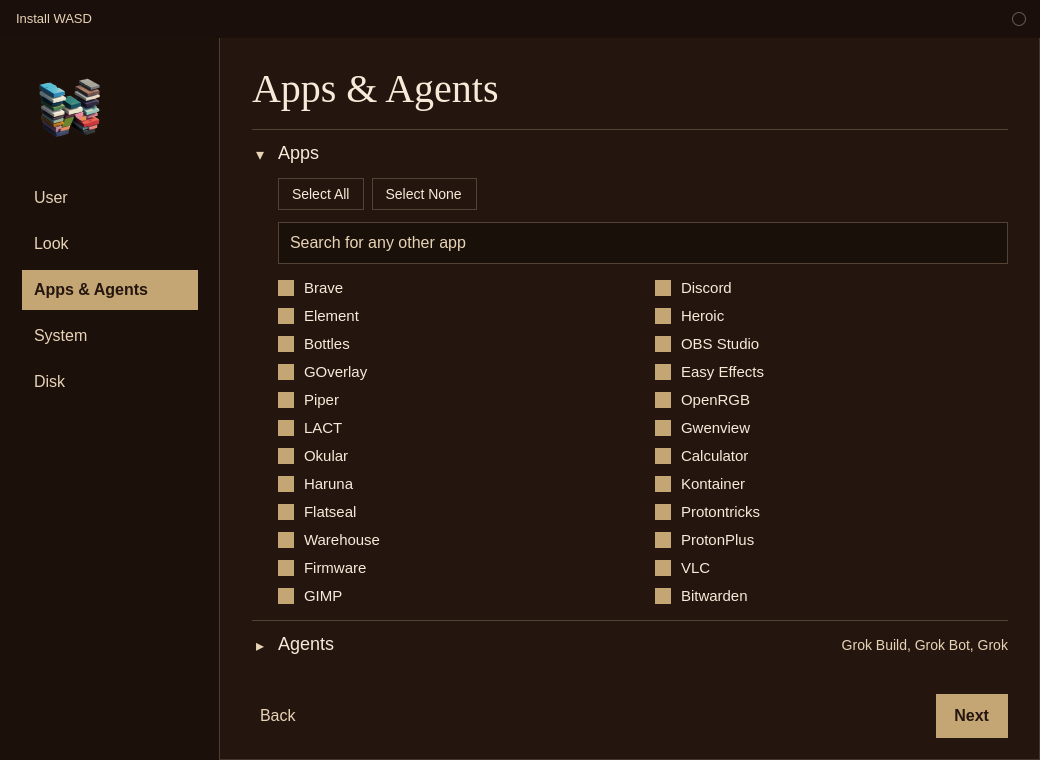
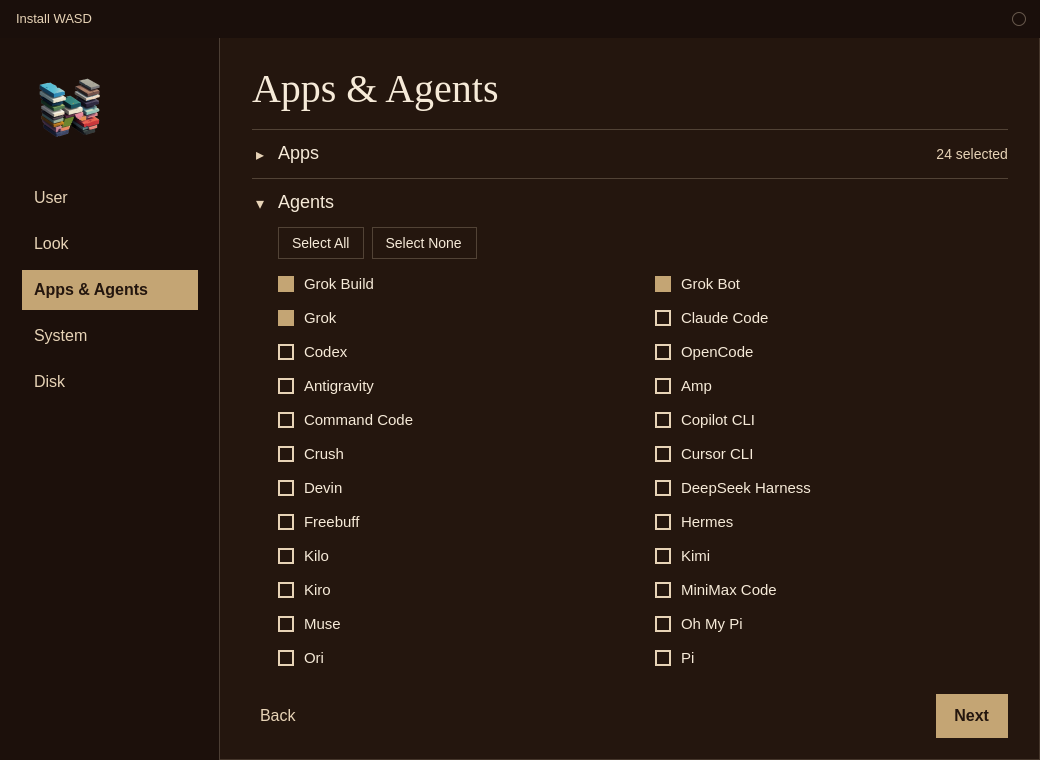
Steam is already part of the system, so it is not a checkbox. Discord, OBS Studio, Heroic, Brave, Element, Bottles, and the audio, mouse, light, and GPU tools are already on the disc too. VLC, GIMP, and Bitwarden are on this list and are not on the disc. The window saves the boxes you check. The first-boot window does not install those extra apps yet. Discover can add one later.
The agents are coding and chat tools. They are saved with your choices. They are not installed by this window yet.
System
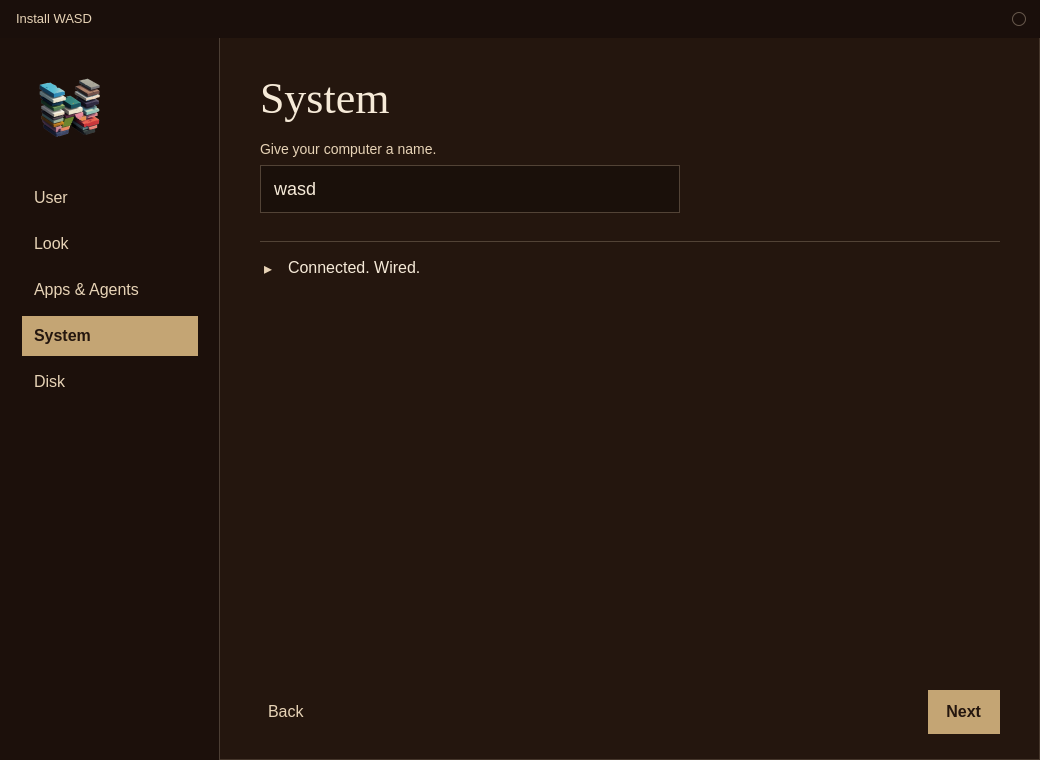
The saved name is lowercased. Letters, numbers, and hyphens are allowed.
If a connection is already there, the page says it is connected, and it can name the link. Wired looks like "Connected. Wired." If nothing is connected, the line is "No connection detected, expand to configure." The section opens either way.
Wi-Fi lists the networks it found. The signal number sits beside the security type. You can also type a network name. Leave the passphrase empty for an open network. A hidden network is joined when the typed name is not in the list. On the USB, the radio turns on when you expand this section. TCP/IP can stay automatic, or you can type an address, a netmask, a gateway, and DNS. The netmask has to be contiguous, like 255.255.255.0. Connect, or Use these settings, applies on the live USB. The passphrase and the addresses are not written into the choice file or the installer file. The saved connection is copied onto the installed system. Next stays available with no connection. The erase does not need a network.
Disk
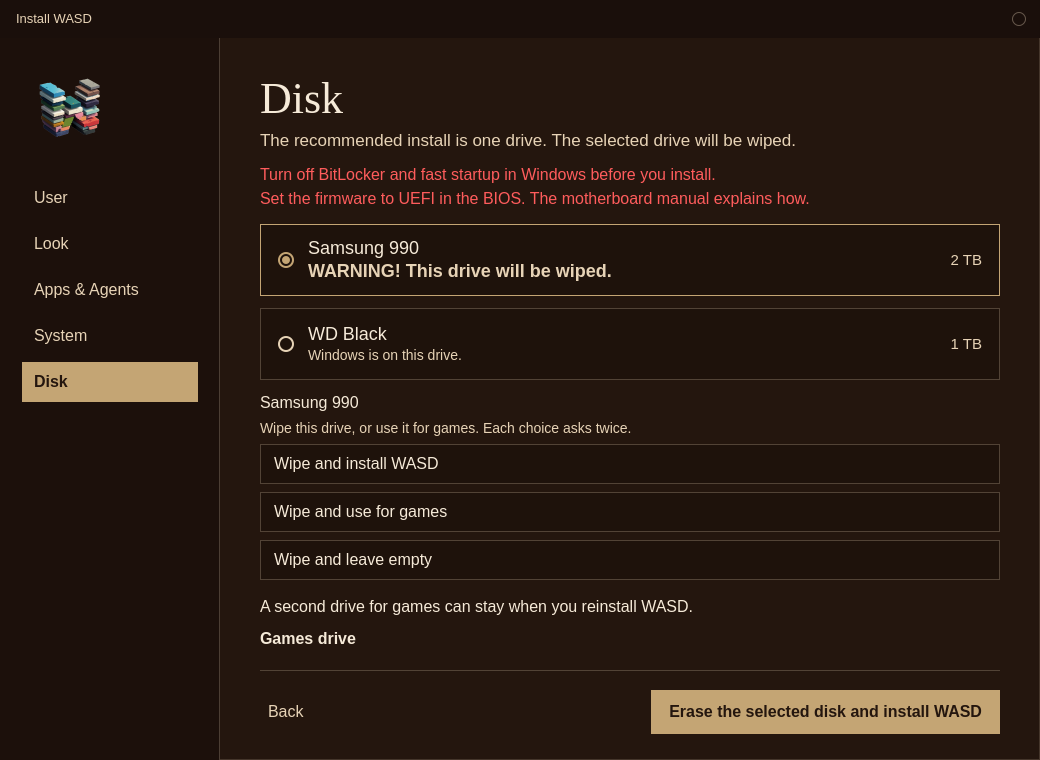
A drive that already has an operating system is not selected for you. Click a drive and the page offers four choices. Each one asks twice. No cancels. Yes, and then Yes again, is what applies it.
Wipe and install WASD erases that drive and uses it for the system. The line on a Windows drive says "WARNING! This erases Windows." and the button at the bottom says "Erase Windows and install WASD." Any other selected drive says "WARNING! This drive will be wiped." and the button says "Erase the selected disk and install WASD." Pressing that button asks the same two questions if you have not already answered them.
Wipe and use for games erases that drive, names it games, and mounts it at /games. Wipe and leave empty erases the drive and does not install WASD there and does not use it for games. Use this as my games drive keeps the files and mounts the drive at /games. That last choice is there when the drive has a filesystem WASD can mount. If BitLocker is still on, it is not. Turn BitLocker off first, or wipe the drive instead.
If the drive has Windows on it, the first question says "Windows is on this drive." and asks if you are sure Windows is here. The second question names what will happen. Two yes answers are enough, including on a Windows drive.
Turn off BitLocker and fast startup in Windows before you install. A locked or hibernated Windows volume can get in the way even when you are installing to a different drive. If the firmware is legacy BIOS, set it to UEFI. The motherboard manual explains how, and the install stays unavailable until then. If Secure Boot is on, the next boot asks you to enroll a key. Choose Enroll MOK and enter universalblue.
After the install, the PC starts WASD. Another system on another drive is started from the firmware boot menu. WASD does not add that system to its own menu.
Advanced stays closed. It is partitioning and the other disk choices, and it is not the recommended install. Encryption is in that existing installer. Install WASD does not open it.
A drive for games
The line under the drive list says "A second drive for games can stay when you reinstall WASD." Open Games drive when you want a games drive. Leave it closed, and leave the three wipe choices alone, and the install erases only the drive you selected for WASD. Every other drive stays as it is.
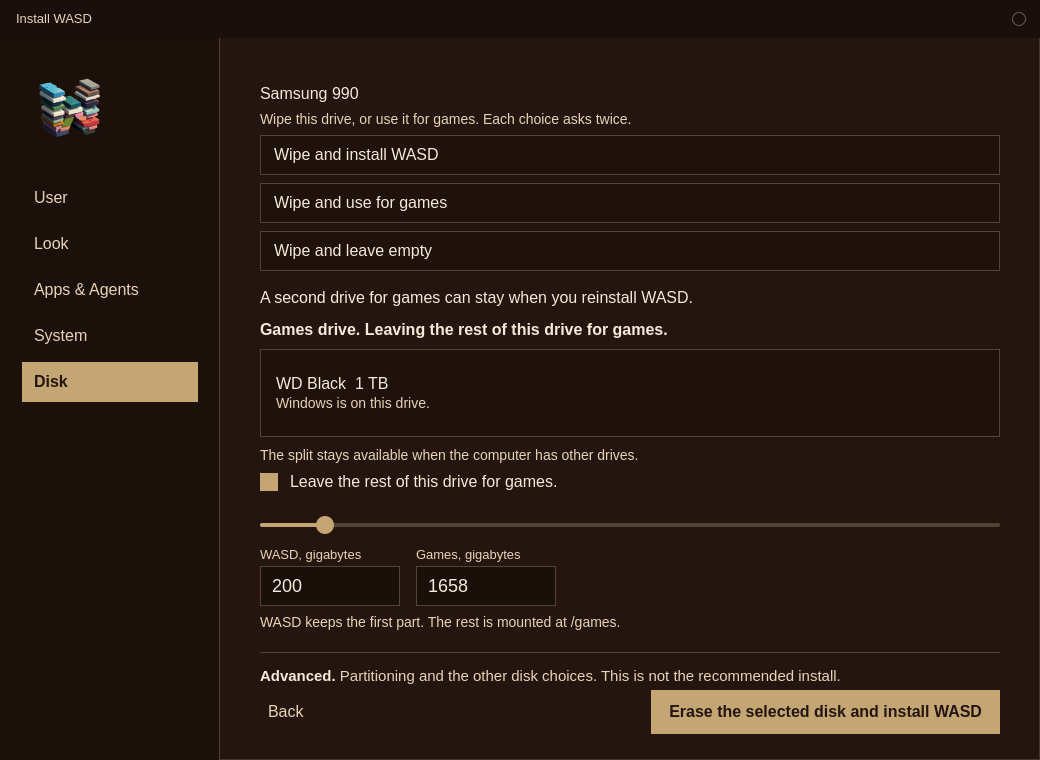
Another drive
Games drive lists the drives you did not select for WASD. Click one there, or click it in the drive list above. The same four choices apply to any drive.
If a drive has a Steam library, or a filesystem named games, the line is "This drive has your games. WASD will use it and will not erase it." A Steam library is a steamapps folder, or SteamLibrary/steamapps. Use this as my games drive, answer yes twice, and the install mounts it at /games. The files stay. A library on NTFS is mounted. It is not formatted. The name games can be any capitalization.
An empty drive has no filesystem to keep. Wipe and use for games formats it, names it games, and mounts it at /games. The new filesystem is btrfs. A SteamLibrary folder is created so Steam has a place to put games.
A drive that already has files can be used without erasing it. Use this as my games drive and answer yes twice. It is mounted at /games. The files stay in their folders. Mounting does not move them. A library that sat at the top of the drive is at /games after the mount.
A Windows drive says "Windows is on this drive." It can be the games drive. The first question says so, and the second question says whether the files stay or the drive is erased. Two yes answers apply it. Wipe and leave empty is the same two questions, and then the drive is erased and left unused.
On the WASD drive
The section offers "Leave the rest of this drive for games." even when the computer has other drives. That choice starts off. The whole selected drive is still what gets erased.
Turn it on and you get a slider and two boxes, in gigabytes. One box is WASD. The other is games. The slider moves both. You can type a number in either box. WASD keeps at least 64 GB. Games keep at least 32 GB. The drive also needs a little room for the boot partitions, about 4 GB, so a drive that cannot hold 64 GB plus 32 GB plus that room cannot be split. The page says so.
The starting suggestion is 128 GB for WASD, or less if the drive is smaller, and the rest for games. That is a suggestion on the slider, not a silent 500 GB cut. Nothing is split until you turn the choice on and you can see both numbers.
WASD uses the first part of the drive. The rest becomes its own partition, named games, and is mounted at /games. The games space is not handed to the system partition.
Where the games are
The path is /games. The filesystem name is games. In Steam, add a library folder at /games/SteamLibrary when you want new games there. An existing library stays in its old folder on that drive.
The next time you install WASD, a drive named games, or a drive with a Steam library, is recognized. The closed Games drive line can say a drive already has your games. It is still your choice. Open the section and choose that drive, and WASD mounts it without formatting it. An old games drive that came from Windows will not have the name games. A Steam library on it is enough. If the drive is only files, with no Steam library and no name games, choose Use this as my games drive yourself. That choice keeps the files. Choosing the split, or a different games drive, uses one games place. The other choice turns off.
The first boot
If you checked Set a password, that comes first. Two boxes, typed twice, and they have to match. The window says "This password is also the administrator password. The next boot asks for it." Automatic sign-in turns off for the following boot. The session you are in stays signed in. Closing the window before the password is set brings it back the next time the computer starts.
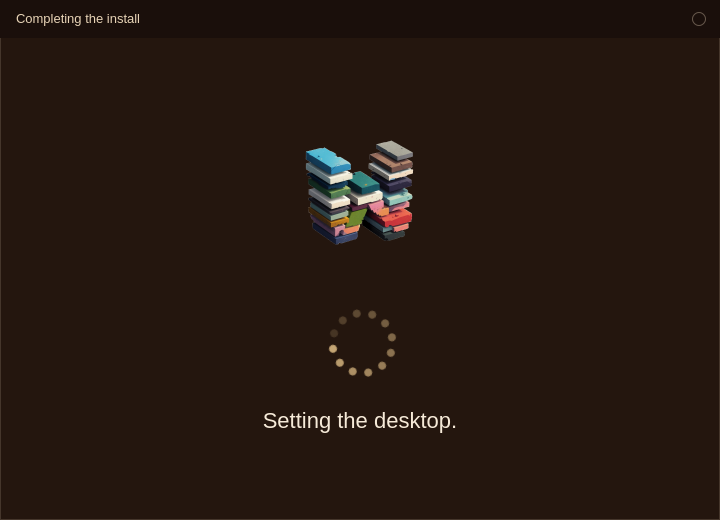
The lines are "Setting the desktop.", "Installing what you checked.", and "Finishing up." The look you picked, and the extra apps and agents you checked, are not applied by this window yet. The stained-glass pictures and the apps that came on the disc are already there. WASD Look changes the pictures. Discover adds an app that was not on the disc.
To sign in automatically again after you have set a password, open System Settings, then Security and Privacy, then Login Screen, and turn on Automatically log in.
WASD Look
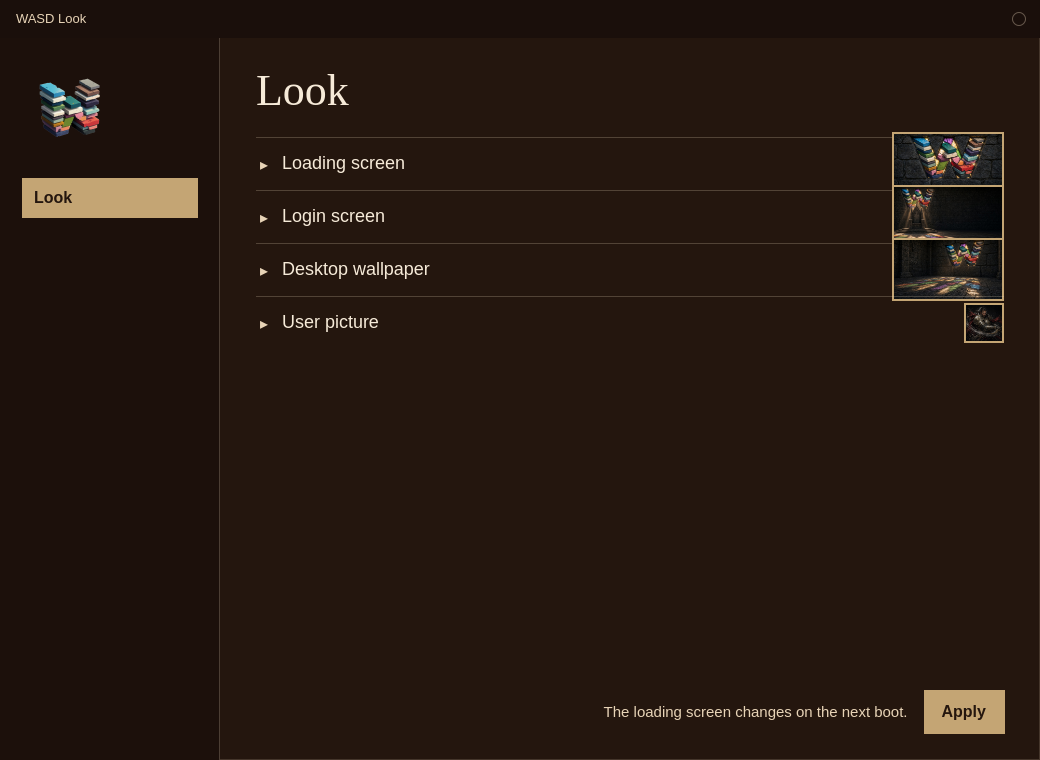
Open WASD Look from the menu after the system is installed. The same folders supply the choices. Loading screens are /usr/share/wasd/loading. Login screens are /usr/share/wasd/login. Wallpapers are /usr/share/wallpapers/wasd. The user picture is the same ten characters. Click the selected character again to clear it. Apply leaves the account picture alone unless you picked one or cleared it on that visit.
The wallpaper changes immediately. The user picture and the login screen change at the next login. The loading screen is rebuilt on that computer and shows on the next boot. That rebuild is not a new download of WASD. Theme choices stay in KDE's own settings.
The desktop note is on the About page. The stick is covered in How to make a bootable USB.